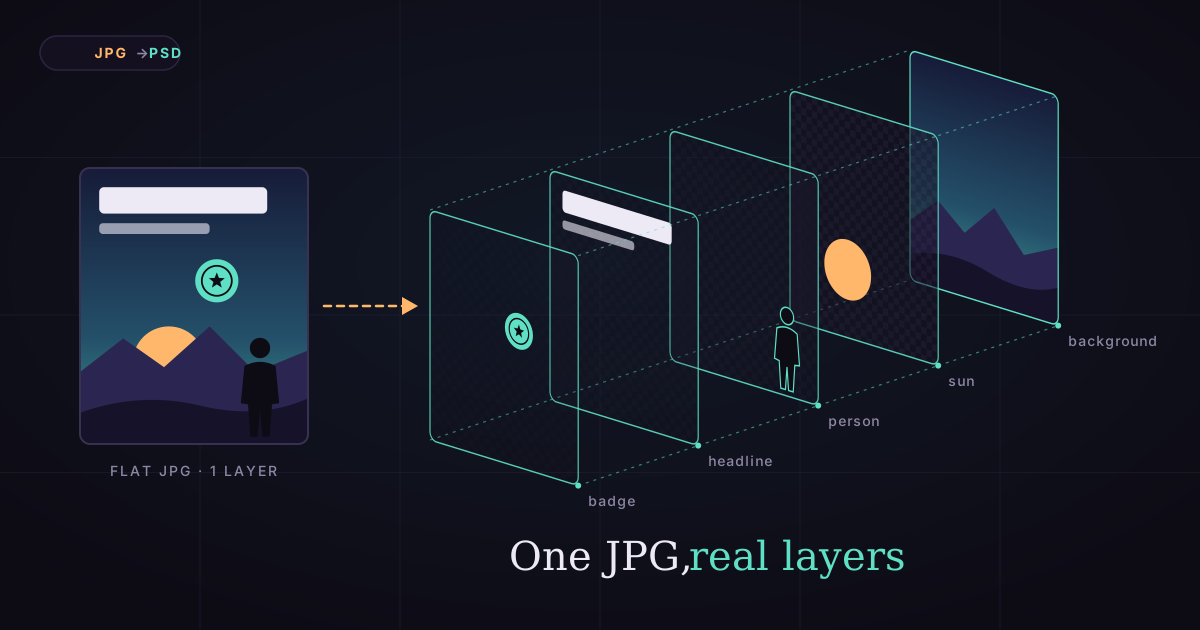
How to Convert JPG to PSD With Layers (3 Ways, 2026)
Most JPG to PSD converters give you one layer. Get real layers three ways: Photoshop by hand, Canva Magic Layers, or AI that splits every element.
How to Convert a JPG to a PSD With Layers (Not Just One Layer)
You have a poster, an ad or a thumbnail as a JPG. You need to move the headline, swap the product or replace the background. So you search for a way to convert a JPG to a PSD with layers.
Here's the problem: most JPG to PSD converters change the file format and nothing else. You get a .psd with exactly one layer, the same flat picture you started with.
This guide shows you how to get real, separate layers: a clean background plus one layer for each person, object and line of text. We compare three methods (Photoshop by hand, Canva Magic Layers and AI layer separation), show four real images split into layers, and explain what each method can't do.
Let's start with why your JPG has no layers in the first place.
Why a JPG has no layers
A JPG stores one flat grid of pixels. When a design is exported to JPG, every layer is merged into that single grid, and the file keeps no record of where one element ended and the next began.
What flattening does
In a design file, the headline, the photo and the logo each sit on their own layer. Exporting to JPG (or PNG) merges them. The background pixels behind the headline are gone, replaced by the headline's own pixels.
What "layers" means in a PSD
A PSD (Photoshop Document) can hold many layers stacked from back to front. Each layer can have transparent areas, so you can move a logo without leaving a hole, because the layer underneath is complete.
Why that makes "converting" hard
To turn a JPG back into layers, something has to do two jobs: cut out every element, and paint in what was hidden behind it. A format converter does neither. That's the gap between the two kinds of "JPG to PSD" you'll find online.
Wrap vs Split: the two kinds of "JPG to PSD"
There are two very different things called "JPG to PSD": a Wrap puts your image into a PSD file as one layer, and a Split separates the image into a background and individual element layers. Only a Split gives you an editable design.

Wrap: a format change
Most free online "JPG to PSD converters" do a Wrap. The output opens in Photoshop, but the Layers panel shows a single layer.
That's useful if a client or printer insists on the PSD format. It's useless if you need to edit.
Split: real separation
A Split gives you a stack: the background on the bottom with the gaps filled, then a layer for each element on top. You can drag the headline, hide the product or recolor the sky.
How to tell which one you got
Open the PSD and look at the Layers panel. One layer means a Wrap. Several named layers with transparent areas, and a background with no holes when you hide them, means a Split.
Now, three ways to do a real Split.
Method 1: Split a JPG into layers in Photoshop
In Photoshop, you split a JPG by selecting each element, copying it to its own layer, and filling the hole it leaves in the background. It's precise and it's slow: plan on 30 to 90 minutes for a poster with four elements.
Step 1: duplicate the background
Open the JPG and press Ctrl+J (Cmd+J on Mac) to copy the background layer. Work on the copy, so the original stays untouched.
Step 2: select the first element
Use Select > Subject for the main person or product. For anything else, use the Object Selection tool: drag a loose box around the item, and Photoshop shrinks the selection to its edges.
Step 3: lift it onto its own layer
Press Ctrl+J (Cmd+J) for Layer via Copy, or Shift+Ctrl+J (Shift+Cmd+J) for Layer via Cut. The element now sits on a new layer. Name it.
Step 4: fill the hole in the background
Go back to the background layer and reselect the area. Expand the selection by a few pixels with Select > Modify > Expand, then choose Edit > Content-Aware Fill, or use Generative Fill.
Content-Aware Fill samples nearby pixels. Generative Fill paints new content with AI and uses Adobe generative credits; how many depends on the model you choose.
Step 5: repeat for every element
Do it again for the headline, the logo, the badge. Small and overlapping elements take the longest, because their edges and the hidden areas behind them both need cleanup.
When Photoshop is the right choice
Choose the manual route when you need the exact original pixels, for example a product photo that must match the packaging, or when you need perfect control over every edge.
Method 2: Canva Magic Layers
Canva Magic Layers turns a flat PNG or JPG into editable Canva elements, and its standout feature is that text comes back as live, editable text. That makes it the best choice for fixing the words on a design.
What it does
According to Canva's launch announcement (March 2026), text is restored as "live, fully editable text boxes," objects become separate elements you can move, and the background is preserved behind them.
Its limits
- Availability: it launched in beta in the US, UK, Canada and Australia, with wider availability promised later. Check whether it's live in your account.
- Plan: according to Canva's help center, each use counts toward a monthly AI allowance that varies by plan.
- Files: single-page PNG or JPG only; PDFs need converting first.
- Output: the result lives in Canva. It's not a PSD, so Photoshop users need another route.
When Canva is the right choice
Pick Magic Layers when your main job is changing the text on a design, and you'll finish the work in Canva.
Method 3: Convert a JPG to a PSD with layers using AI
An AI layer separation tool splits a JPG into a clean background plus one transparent PNG per element in about a minute, and can export everything as one layered PSD. It's the fastest route to a real Split.
Here's how it works with Imgveo's image to layers tool.
Step 1: upload the image
Drop in a JPG, PNG or WebP up to 10 MB. Posters, product shots, thumbnails and photos all work. Sharper sources give cleaner layers.
Step 2: name what to separate (optional)
Type the elements you want, separated by commas: "the woman, the headline, the logo." Each name becomes a layer. Leave the box empty and the AI chooses the main elements itself.
Step 3: choose PNG layers or a PSD
By default you get PNG layers for 30 credits. Switch on PSD for 65 credits and you also get a single Photoshop file, with every layer named and placed exactly where it sat in your picture.
Step 4: download
A default run takes about a minute; a PSD run about two. Download layers one by one, as a ZIP, or as the PSD. If a run fails, the credits go back to your balance.

Real examples: four JPGs split into layers
We ran four very different images through AI layer separation, and the results below are the real outputs, untouched. Each sheet shows the original, the clean background and every layer.
Event poster: headline, guitarist, badge and sun
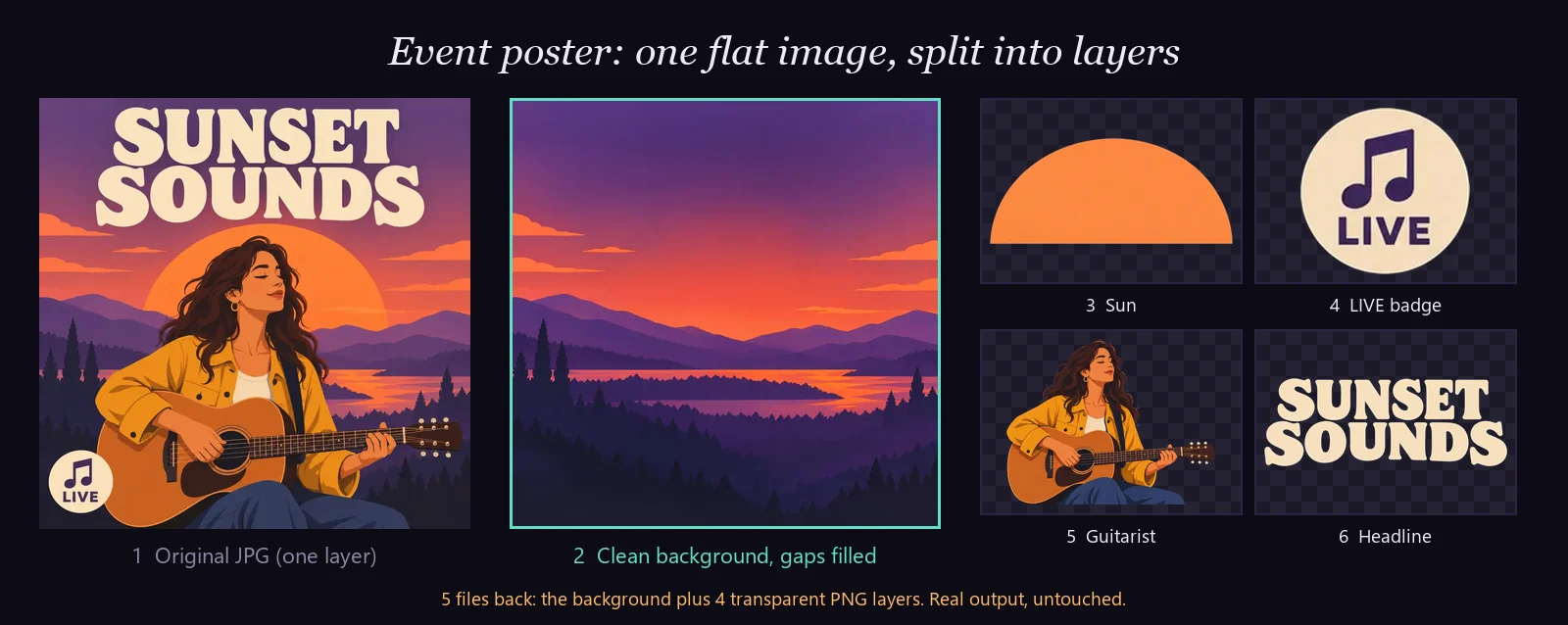
The headline, the guitarist and the round LIVE badge came back as clean, complete layers. The badge was about 190 pixels wide in the source and came back 752 pixels wide, redrawn at a higher resolution.
The sun is the interesting one. It sat behind the mountains, so its lower half was never visible. The AI completed it as a disc with a flat bottom: a guess, not a recovery.
Product photo: bottle, pedestal, sprigs and sticker
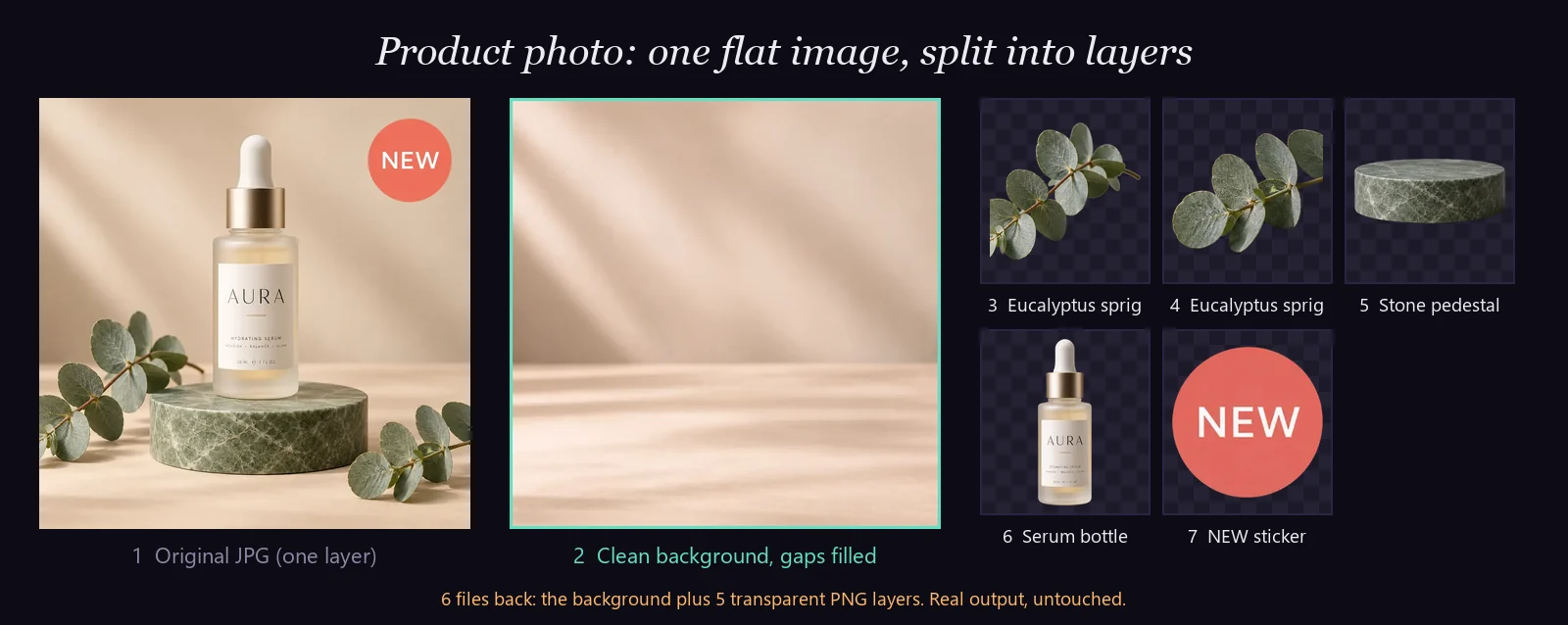
Five layers, including two separate eucalyptus sprigs. The AURA label on the bottle stayed sharp and readable, and the pedestal left a clean, empty backdrop behind it. The "NEW" sticker went from about 245 pixels wide to 753.
Busy scene: six elements in a park
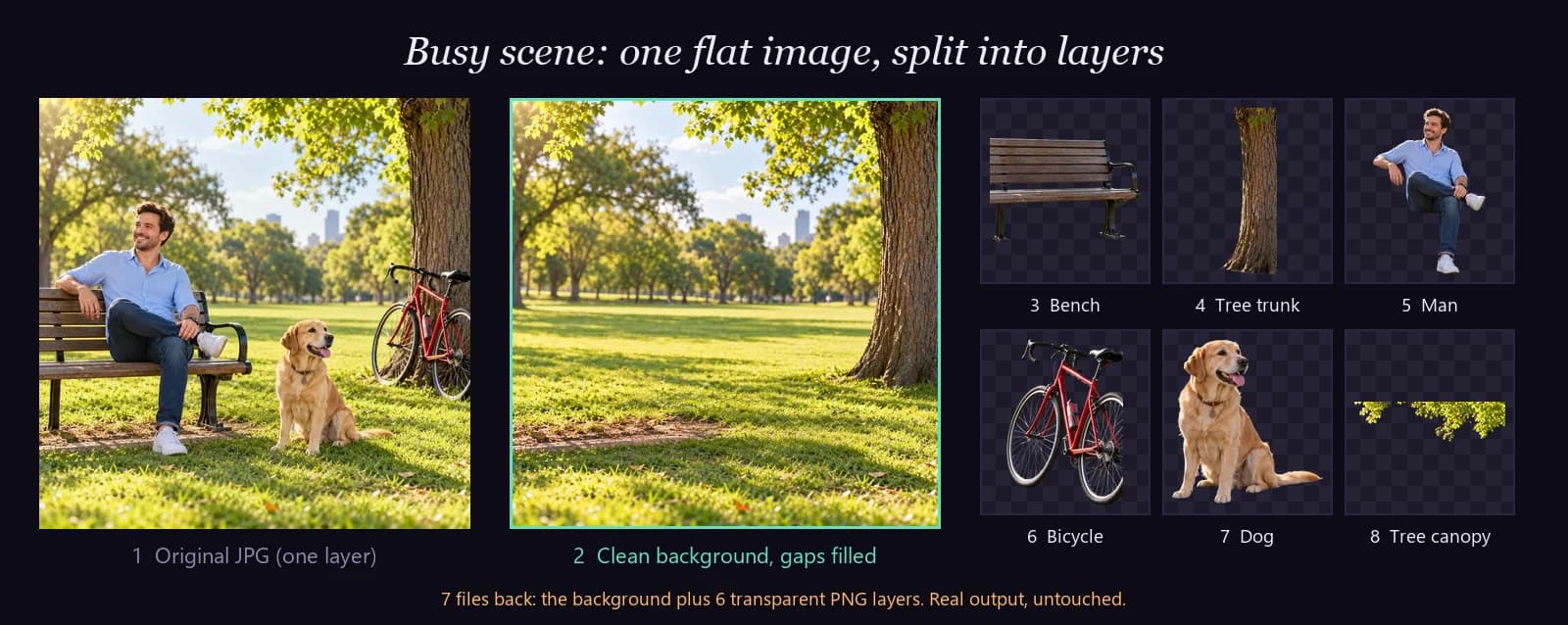
With no prompt, the AI found six elements, including the bench the man was sitting on, returned complete. It split the tree into a trunk and a canopy on its own.
One thing to watch: the tree trunk came back as its own layer and stayed in the background plate. Before you move a layer, hide it and check that the background underneath is the way you want it.
Video thumbnail: person, text and arrow

Three layers, which is exactly what a thumbnail needs: swap the text for a new video, keep the person and the arrow. The text layer is an image of the text, not editable type. More on that below.
What the four tests show
- Every element came back whole, with hidden parts filled in.
- Small items were redrawn larger than they appeared in the source.
- The background was repaired where elements had been, with one exception worth checking.
- Text stayed sharp and correctly spelled, but as pixels, not as a font you can retype.
How to open and edit your layers
A layered PSD opens directly in Photoshop or, for free, in Photopea; plain PNG layers can be placed in any design app. Here's the quickest route for each.

Photoshop, with the PSD
Open the PSD. The background sits at the bottom of the Layers panel and every element is on its own named layer, already in position. Move, hide, scale or recolor any layer, then export.
Photoshop, with PNG layers
Open the background PNG as your canvas. Choose File > Place Embedded, pick a layer PNG, position it and press Enter. Repeat for each layer, using the file numbers as the stacking order.
Photopea (free, in the browser)
Photopea opens and saves PSD files with their layers. Open the PSD directly, or open the background and drag each PNG into the document; Photopea adds it as a new layer.
Figma and Canva
Drag the background and the layer PNGs onto the canvas. Each PNG becomes its own image layer. Set the order back to front, and you have an editable version of the design.
Photoshop vs Canva vs AI: side by side
For speed, AI wins; for editable text, Canva wins; for pixel-exact control, Photoshop wins. Here's the full comparison on a typical poster with four elements.
| Photoshop by hand | Canva Magic Layers | AI layer separation | |
|---|---|---|---|
| Time | 30–90 minutes | Automatic (time not published) | About 1 minute (2 with PSD) |
| Output | PSD | Canva design | PNG layers, ZIP or PSD |
| Hidden areas | Filled by you | Background preserved | Filled in by AI |
| Text | Pixels (retype it yourself) | Live, editable text | Pixels, sharp and correctly spelled |
| Pixel accuracy | Exact | Not published | Elements redrawn |
| Cost | Photoshop subscription + your time | Canva plan with AI allowance | 30 credits, or 65 with PSD |
| Best for | Pixel-perfect product work | Changing words on a design | Fast, full splits into Photoshop or any app |
What AI layer splitting can't do (yet)
AI layer separation redraws each element instead of copying it pixel for pixel, and that creates four limits you should know about.
Text isn't live type
The headline comes back as an image of the words, sharp and correct, but not as a font. To change the wording, hide the text layer and set new type in your editor. If editable text is your main goal, Canva Magic Layers is built for that.
Fine texture can shift slightly
Bark, grass and fabric are redrawn, so they can differ a little from the original. Text, logos and labels stayed sharp and correctly spelled in our tests.
Hidden parts are a guess
Anything that was covered is invented, like the flat-bottomed sun on our poster. If the hidden part matters, check it before you use the layer on its own.
Auto mode splits its own way
Without a prompt, the AI decides what counts as one element. It split our tree into two layers. Name the parts if you need a specific split.
Tips for cleaner layers
Better input and a short, specific prompt give you better layers. Five habits make the biggest difference.
- Use the sharpest source you have. Upscale a small image first with an AI image upscaler.
- Name every element you need, as plain nouns: "the bottle, the sticker, the pedestal."
- Point at things by what's visible: colors and printed words help ("the red arrow," "the NEW sticker").
- Leave the prompt empty once to explore what the AI sees in a busy image.
- Check the background with every layer hidden before you rearrange the design.
Which method should you use?
Pick the method by what you need to change.
- You need to retype the words: Canva Magic Layers, if it's available in your account.
- You need every element in Photoshop, fast: AI layer separation with the PSD option.
- You need one subject on a transparent background: a background remover is quicker and cheaper.
- You need the exact original pixels: Photoshop by hand.
- You only need a .psd file for a client: a Wrap converter is fine, since nobody will edit it.
FAQ
Can you convert a JPG to a PSD with layers?
Yes, but not with a format converter. A converter gives you one layer. To get separate layers, split the image: by hand in Photoshop, with Canva Magic Layers, or with an AI layer separation tool that exports a layered PSD.
How do I separate an image into layers for free?
Photopea is a free browser editor that saves layered PSDs, so you can split an image by hand there. AI layer separation on Imgveo costs 30 credits per image, or 65 with the PSD export; the free plan's monthly credits aren't enough for a run.
Can AI split an image into layers?
Yes. AI layer separation returns a clean background plus one transparent PNG for each element, with hidden areas filled in. It redraws each element, so text stays sharp but becomes pixels rather than editable type.
Does splitting a JPG into layers lose quality?
Not usually. Small elements are often redrawn at a higher resolution than they had in the source. Fine textures like grass or fabric can differ slightly, because each layer is redrawn rather than copied.
Can I edit the text from a flattened image?
Of the three methods here, only Canva Magic Layers turns text back into editable text boxes. Photoshop and AI layer separation give you the text as pixels. Hide that layer and set new type over the background.
How do I split a PNG into layers in Photoshop?
The same way as a JPG: select each element (Select Subject or the Object Selection tool), press Ctrl+J or Cmd+J to copy it to a new layer, then fill the hole in the background with Content-Aware Fill. Repeat for each element.
The bottom line
To convert a JPG to a PSD with real layers, you need a Split, not a Wrap. Photoshop gives you exact pixels at the cost of an hour, and Canva gives you editable text if it's available to you.
AI layer separation gives you every element as its own layer in about a minute.
Try it on your own design: split an image into layers and switch on PSD to open the result straight in Photoshop.
Related reading
Author

Categories
More Posts
26 AI Video Models Compared: Specs & Prices (Oct 2026)
26 AI video models on one page: max length, resolution, sound and price per second for Veo 3.1, Kling 3, Seedance 2.5, Wan 3 and more. Updated monthly.
How to Make an AI Music Video (Song to Final Cut, 2026)
Make an AI music video from scratch: write the song, map shots to the beat, make your singer perform and cut on the downbeat. Costs from 520 credits.
![AI Video Character Consistency: A Cross-Model Guide [2026]](/_next/image?url=%2Fimages%2Fblog%2Fai-video-character-consistency%2Fai-video-character-consistency-cover.svg&w=3840&q=75 "AI Video Character Consistency: A Cross-Model Guide [2026]")
AI Video Character Consistency: A Cross-Model Guide [2026]
Why AI keeps changing your character's face — and the Lock-Then-Animate workflow that fixes it. Reference sets, drift diagnosis, cross-model tactics.