GPT Image 2.6 AI Image Generator
Create a 1K image from a brief, or bring a reference and describe your next edit. Start with a blank prompt or try a composition below.
Four compositions to try
Pick an illustration to load its text into the generator. Change the subject, light or framing to make the brief your own.
 Illustration
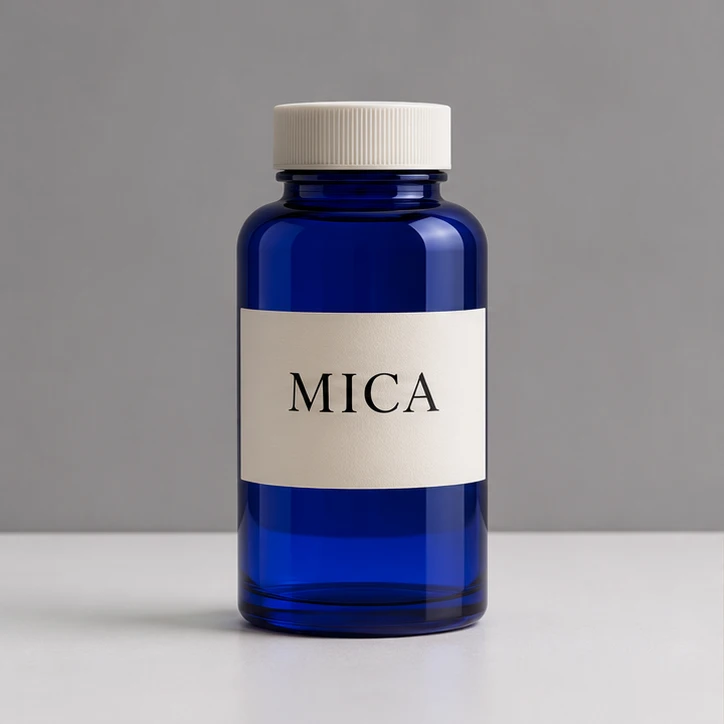
Cobalt glass
1K · PNG
Prompt: Front view of a cobalt glass bottle with a ribbed ivory cap and a paper label reading "MICA", soft studio light on a matte white table.
 Illustration
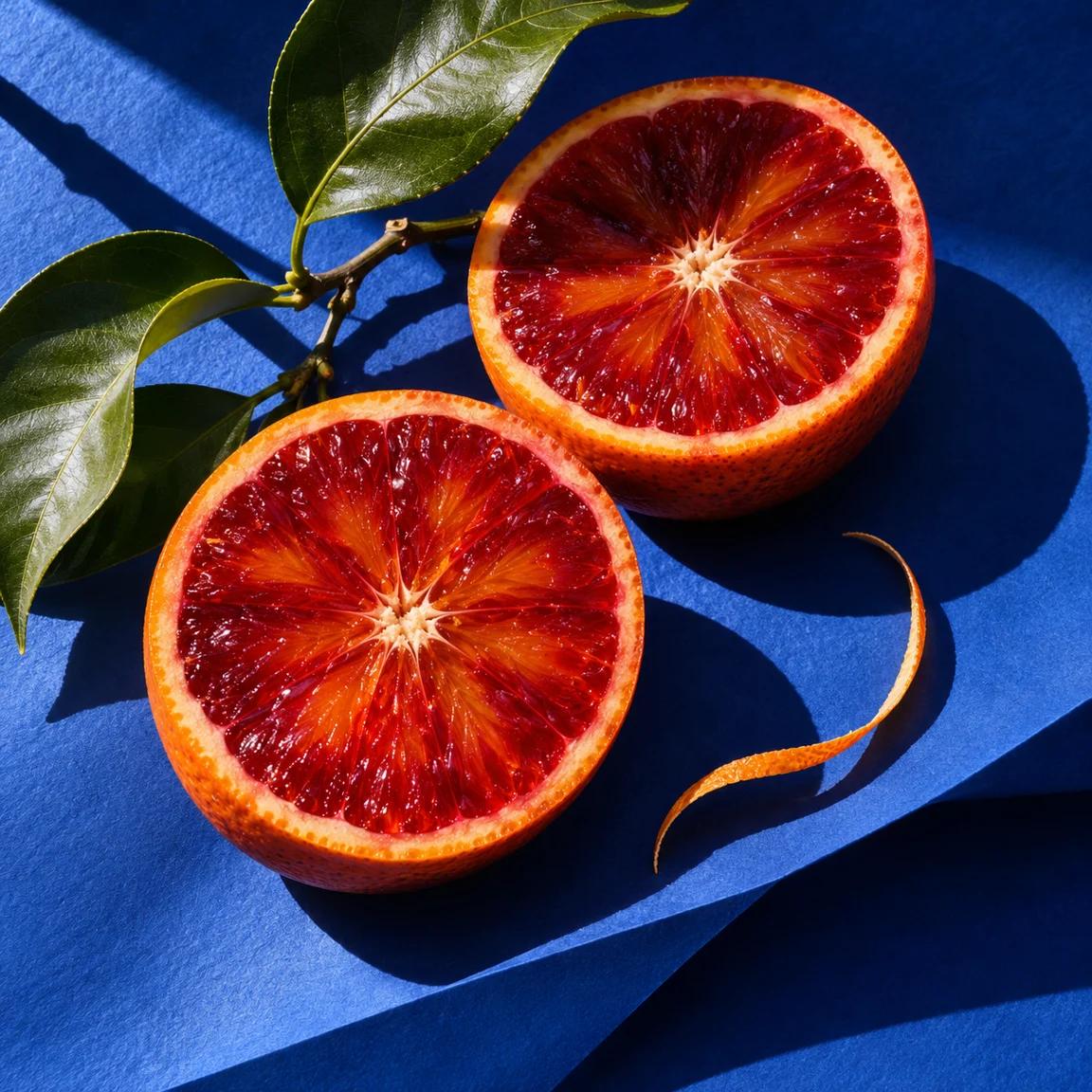
Blood orange
1K · PNG
Prompt: A blood orange sliced in half on folded cobalt paper. Show the ruby flesh, a curled peel and hard midday shadows in a square editorial photograph.
 Illustration
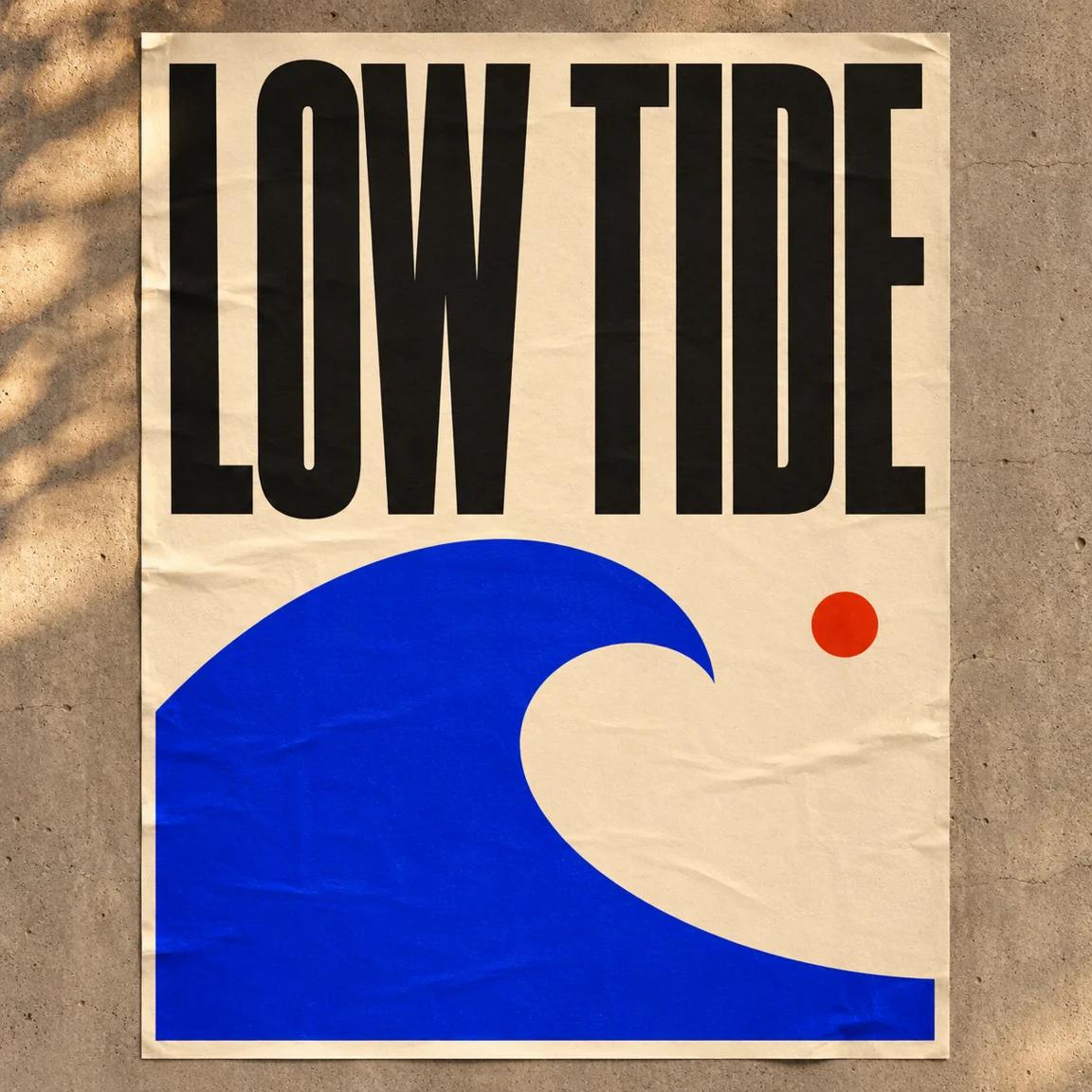
Low Tide poster
1K · PNG
Prompt: Design an ivory concert poster titled "LOW TIDE" in bold condensed black letters, with a cobalt wave and a single red circle. Show it on a concrete wall.
 Illustration
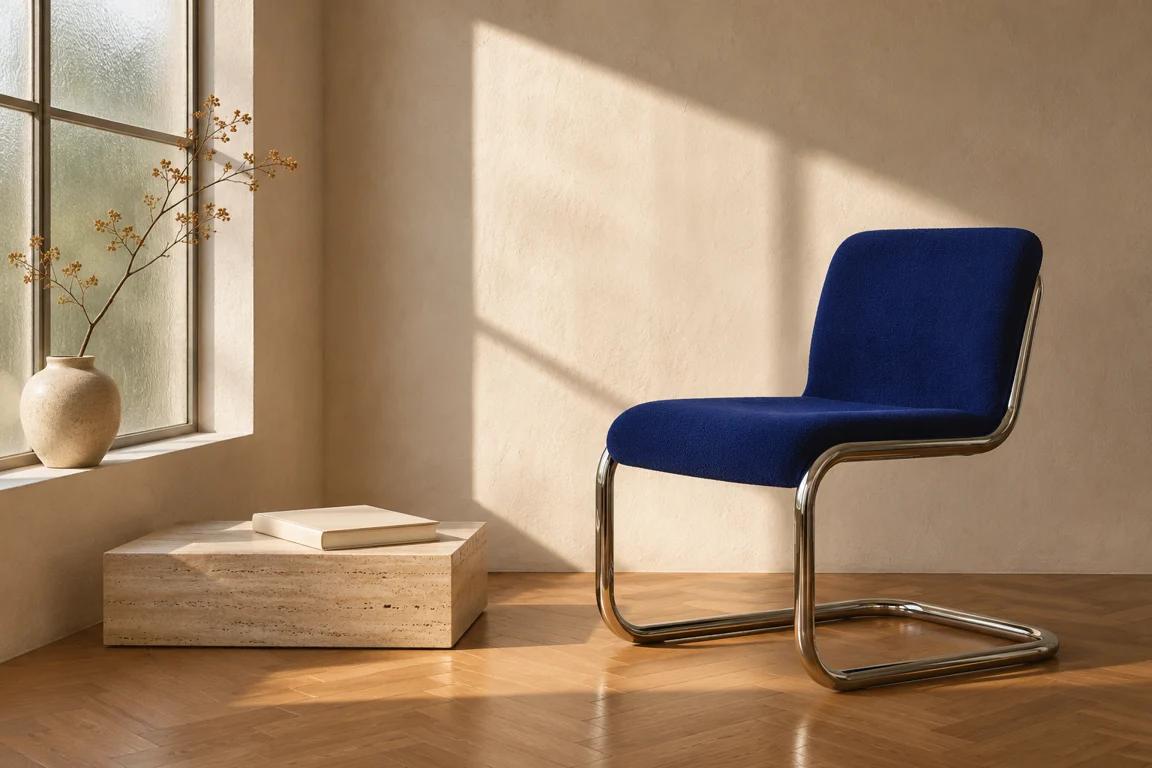
Window seat
1K · PNG
Prompt: A cobalt cantilever chair on oak parquet beside a low stone plinth. Frame the seat at eye level, with late sunlight from a tall window on the left.
One bottle, two edits
Follow a GPT Image 2.6 editing brief from a clean packshot to a warmer campaign image. These three illustrations describe the intended art direction. Look at the cap, the label and the bottom edge of the glass in each frame.
Choose the source
Front view of a cobalt glass bottle, ivory ribbed cap, ivory label reading “MICA”, matte white table, neutral wall, diffuse light.
Start with a front view that tells GPT Image 2.6 what the bottle actually looks like. The straight sides, ivory cap and four letters on the label give you three easy checks. Leave some space around the object so its silhouette stays visible against the wall. Save this source before making any changes.
Download this reference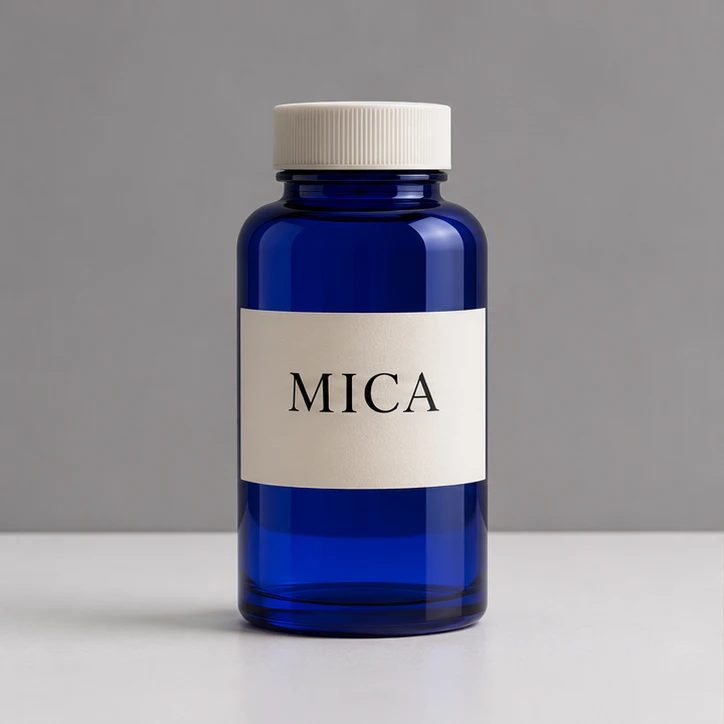
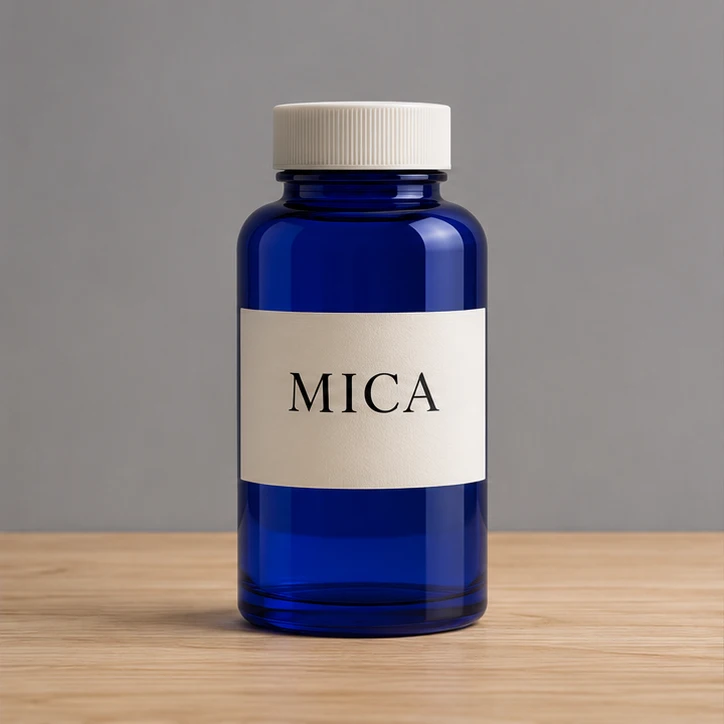
Change the surface
Replace the white tabletop with pale oak. Keep the bottle, label, camera angle and wall as shown.
Ask for pale oak beneath the bottle. Specify that the wall stays neutral and the camera stays level with the label. In the illustrated brief the horizontal line behind the product still crosses at the same height. Compare that line and the outline of the bottle before deciding which result to use next.
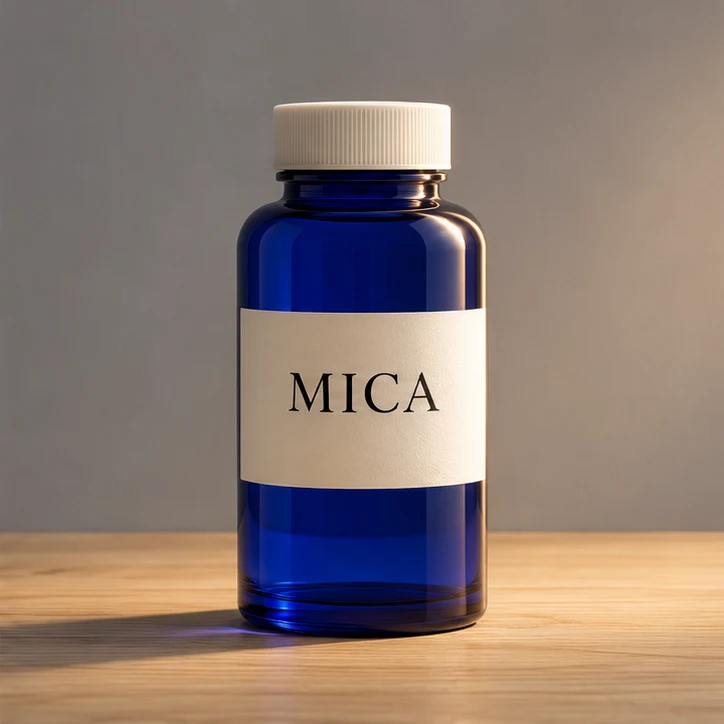
Shape the light
Add warm side light from the right. Keep the oak surface, the bottle position and the lettering.
Use the accepted oak version as the next reference. Ask for a warm light from the right with a soft shadow to the left. The product now has a reason to catch a brighter edge. Read the label again at full size, then compare the blue glass with the original before exporting.
Write a brief you can actually check
A useful GPT Image 2.6 prompt gives you a way to judge the picture. Describe where things sit, which detail carries the message and what may change. Three short decisions are usually enough to begin.
Give the subject a place
“An orange on blue paper” leaves the size, camera and arrangement open. For a food photograph, ask for two halves placed cut side up, one near the upper edge and the other near the lower left. This gives GPT Image 2.6 an arrangement you can sketch on a napkin. You can still leave the tiny details of peel and paper to the model.
Choose the evidence
Pick one visible feature that will tell you whether the image works. A cold glass bottle might need a thin highlight on its shoulder. A concert poster might need a title that stays readable when reduced to the size of a phone thumbnail. Include that feature in your brief, then inspect it at both the working size and the intended display size.
Separate the revisions
If the composition feels right but the color feels wrong, save the composition and edit the color in a separate pass. Asking GPT Image 2.6 to change the lens, replace the props and rewrite the headline together makes it harder to see which instruction caused an unwanted change. Give each pass a short name so you can return to the strongest version.
Give each reference a job
For a catalog image, choose the clearest photograph of the actual product as your first reference. A second picture can supply a surface, a fabric swatch or a lighting direction. Tell GPT Image 2.6 which property belongs to which picture. “Use the bottle from image one and the pale wood from image two” is easier to review than a request to combine two scenes.
Crop away a hand holding the sample or a price sticker on the table if those details have no place in the result. Leave the edges of the product visible. When a reference cuts through a handle or hides the back of a chair, the model has to invent that part. Another angle of the same object can settle the shape.
Imgveo accepts up to 14 reference images for this model. Start with as few as your brief needs. If two photographs show different labels on the same bottle, specify the one you want to preserve. More references can introduce competing instructions, especially when the pictures show different packaging revisions or different times of day.
Frame the picture for its destination
Choose the crop before you spend time polishing details. GPT Image 2.6 Economy on Imgveo exports a 1K PNG. The selected aspect ratio determines where you have room for a subject, a headline or space around a product.
Catalog tile
Center the bottle with enough breathing room for a grid of products. Compare the cap height across the series.
Poster or story
Keep the title clear of the top edge. Leave space beneath the main subject for a date or a short line of copy.
Editorial photograph
Use the wider frame to show the relationship between two objects, such as a chair beside a window.
Landscape banner
Place the subject on the side where it will stay visible after the site overlays its headline.
What to inspect before delivery
Read every character
For the Low Tide poster, write the exact title in quotation marks. Keep the supporting text short and make room around the letters. After GPT Image 2.6 renders the picture, check the spacing inside each word, the counter of the D and the edge of the E. If approved brand typography is essential, leave a clear area and set the final type in your layout file.
Follow the geometry
The cantilever chair is a useful test for a GPT Image 2.6 interior brief. Trace the chrome tube from the seat to the floor and back up again. Check the point where the chair touches the parquet and the direction of the window shadow. A believable room depends on those connections even when the colors and materials already look convincing.
Check the crop at its final size
Put the finished image into the actual page, thumbnail or slide. A detail that looks crisp at full size may disappear beside three other products. For a social crop, inspect the corners as well as the subject. If the window frame or the orange peel leads the eye out of the image, try moving just that element in the next edit.
Choose your GPT Image 2.6 settings
This generator opens with the Economy model, a square frame and one image. A reference turns the same prompt box into an editing workflow. You can switch the ratio before submitting. Check the selected model again after loading an older draft or moving between tools.
- Model
- GPT Image 2.6 Economy
- Output
- 1K · PNG
- References
- Up to 14
- One image
- 8 credits
Plan the cost of an editing session
One GPT Image 2.6 Economy image uses 8 Imgveo credits at the settings shown here. Two separate one-image passes use 16 credits in total. The button shows the quote for your current selection. If you change the model or request more images, read the updated amount before you submit.
For a product campaign, decide first whether you are choosing a composition or finishing a single image. A few independent starting images can help you pick a camera angle. Once a layout is approved, use the selected result as a reference for the next pass. This keeps your budget focused on the version you intend to deliver.
Which GPT image workflow fits?
Choose GPT Image 2.6 Economy here when you need a 1K raster image and want to iterate on a product shot, illustration or layout. Its fixed output size makes it easy to estimate a sequence of small edits. An approved source photograph is particularly valuable when the object has a distinctive surface or a label that needs close review.
OpenAI also offers GPT Image 2.6 Flare for fast iterations and Sunburst for more detailed work and consistent edits. Those names describe other members of the model family. The selected channel in this generator is Economy. For an existing project made with GPT Image 2.5, open the earlier model page to inspect its available sizes and continue working with the same settings.
GPT Image 2.6 questions
Related image tools
Want every AI model in one place?
Open Imgveo Studio to run this and every other AI video and image model from a single workspace, with one credit balance.